
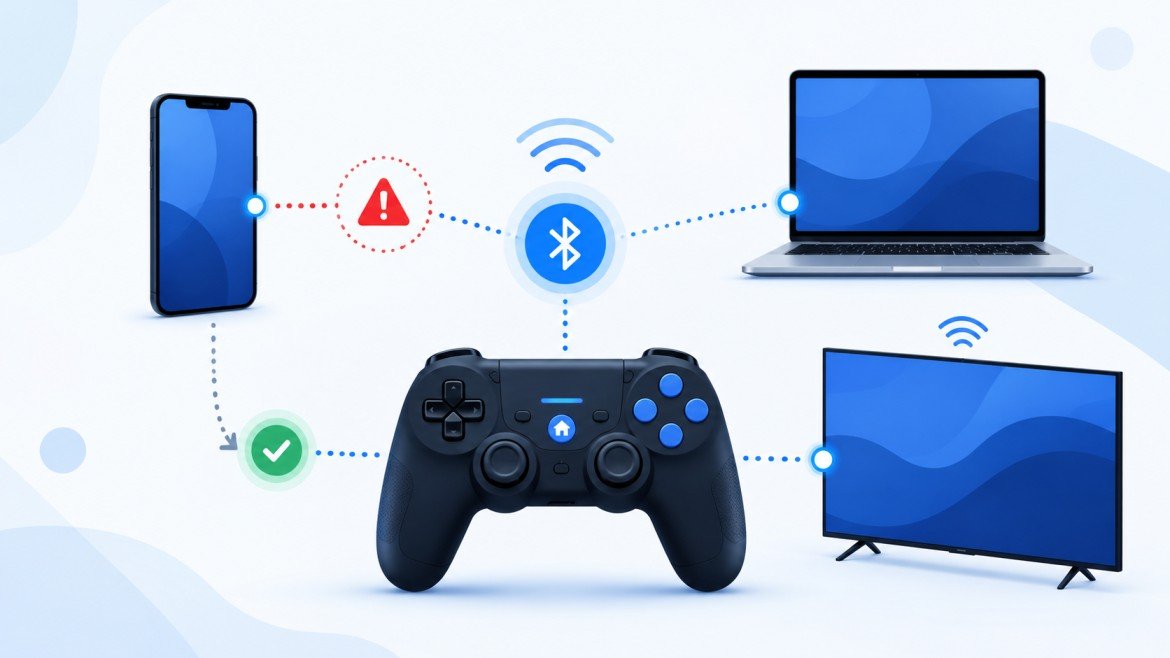

Connectivity HSSGamepad problems usually strike at the worst possible moment — right in the middle of a match. Your controller either won’t pair, drops out randomly, or connects but refuses to respond to a single button press. This guide walks through every connection type the HSS Gamepad supports, how to set each one up correctly, and exactly what to do when the connection breaks down.
You’ll find fixes for Bluetooth, 2.4GHz dongle, and USB wired setups, along with device-specific steps for Android, iPhone, Windows PC, Smart TV, and gaming consoles. Nothing here is guesswork — each fix targets a specific, common cause of controller connection failure.
By the end, you’ll know how to diagnose your exact problem in seconds and fix it without digging through forums or contacting support.
What Is the HSS Gamepad?
The HSS Gamepad is a multi-platform wireless controller built to work across phones, tablets, PCs, and smart TVs. Instead of locking you into one connection method, it supports three separate ways to link up with your device: Bluetooth, a 2.4GHz wireless dongle, and a wired USB cable.
That flexibility is the main selling point, but it’s also where most confusion starts. Each connection method behaves differently, uses different pairing steps, and fails for different reasons. A fix that solves a Bluetooth dropout won’t do anything for a dongle that isn’t detected. Knowing which mode you’re actually using is the starting point for every troubleshooting step in this guide.
Types of Connectivity on the HSS Gamepad
Bluetooth Connection
Bluetooth is the default wireless mode for most HSS Gamepad users, especially on phones and tablets. It pairs directly with your device without needing any extra hardware, which makes it the most convenient option for casual and on-the-go gaming.
The tradeoff is stability. Bluetooth shares its radio frequency with Wi-Fi routers, microwaves, and other nearby wireless devices, so it’s the connection type most prone to interference and lag. It’s a solid choice for casual play, but competitive gamers usually look elsewhere.
2.4GHz Wireless Dongle
The 2.4GHz dongle plugs into a USB port and creates a dedicated wireless link with the gamepad, bypassing your device’s built-in Bluetooth radio entirely. This usually means a faster, more stable connection than standard Bluetooth, with noticeably less input delay.
It’s the preferred setup for PC and TV gamers who want wireless freedom without giving up responsiveness. The only real downside is that losing the tiny dongle means losing that connection option until you get a replacement.
Wired USB Connection
A wired USB connection is the most reliable link the HSS Gamepad offers. Because data travels through a physical cable instead of over radio waves, there’s no interference to worry about and almost no input delay.
This mode also solves battery concerns, since the controller draws power straight from your device. The obvious limitation is mobility — you’re tethered by the cable length, which makes wired mode better suited for PC and console setups than mobile gaming.
How to Connect the HSS Gamepad to Your Device
Android
- Turn on Bluetooth in your phone’s settings.
- Press and hold the pairing button on the gamepad until the LED blinks rapidly.
- Open your Bluetooth device list and select HSS Gamepad.
- Launch a game to confirm the controller responds correctly.
Most Android games detect the controller automatically. If a specific game doesn’t recognize it, a free gamepad mapping app from the Play Store can usually resolve that.
iPhone (iOS)
- Enable Bluetooth under Settings.
- Put the gamepad into pairing mode using the button combination for your model.
- Select the controller from the list of available devices.
iOS 13 and later versions support most Bluetooth gamepads natively through Settings > General > Game Controllers. If your controller doesn’t show up there after pairing, toggling Airplane Mode on and off often forces the connection to register properly.
Windows PC
Windows users have three connection options:
- USB cable for an instant, plug-and-play connection
- Bluetooth, configured through Windows Settings
- 2.4GHz dongle, inserted directly into a USB port
Windows typically installs the required drivers on its own. If the gamepad isn’t detected, check Device Manager for a device listed under “Other devices” with a warning icon — that’s usually a missing driver.
Smart TV (Android TV / Fire TV)
Pair the HSS Gamepad through your TV’s native Bluetooth or Remote & Accessories settings rather than a third-party app, since that tends to produce a more stable connection. Also check that your TV’s Bluetooth isn’t running in a low-power mode, which can weaken the signal enough to cause dropouts. Not every smart TV supports Bluetooth HID controllers, so it’s worth confirming compatibility with your specific model before troubleshooting further.
Gaming Consoles
Console compatibility depends heavily on the HSS Gamepad model you own. Some versions connect to consoles directly through Bluetooth or a dongle, while others need a separate adapter to work at all. Check your model’s documentation before assuming console support is included.
Common HSS Gamepad Connectivity Problems (and Why They Happen)
Most connection issues trace back to a small set of root causes. Here’s a quick reference before diving into fixes:
| Problem | Likely Cause |
| Gamepad doesn’t appear in Bluetooth list | Pairing mode wasn’t activated correctly |
| Connects but nothing responds | Wrong operating mode (keyboard mode instead of gamepad mode) |
| Random disconnects mid-game | Low battery, interference, or power-saving settings |
| Noticeable input lag | Interference, distance, or a weakening battery |
| USB cable not recognized | Charge-only cable, faulty cable, or missing driver |
| 2.4GHz dongle not detected | Dongle not fully seated, or a driver conflict |
| Works on phone but not PC | Outdated or missing HID drivers on Windows |
| Worked fine before, now won’t connect | Corrupted pairing data or a firmware glitch |
Step-by-Step Fixes for Every Connectivity Issue
Fix 1: Charge the Battery First
A low battery causes more connection failures than people expect. Once the battery drops below roughly 20%, the gamepad’s wireless signal weakens, which leads to failed pairing attempts, random disconnects, and added input lag.
Charge the controller fully before troubleshooting anything else. Watch the LED indicator — it typically stays lit while charging and changes color or turns off once full. If connectivity problems persist even after full charge cycles on a controller that’s over a year old, the battery itself may be degrading and could need replacement.
Fix 2: Activate Pairing Mode Correctly
The gamepad not showing up in your Bluetooth list almost always means pairing mode wasn’t triggered properly.
- Turn the gamepad off completely.
- Hold the designated pairing button combination until the LED flashes quickly, signaling discoverable mode.
- Open Bluetooth settings on your device and scan.
- Select HSS Gamepad from the results.
If it still won’t appear, make sure it isn’t already actively paired to another device — the gamepad only maintains one active connection at a time. Moving within a meter of your device during initial pairing also helps.
Fix 3: Forget and Re-Pair the Controller
If the gamepad worked before and suddenly stopped, your device is likely holding onto corrupted pairing data. Clearing it out and starting fresh usually resolves this.
On Android: Go to Bluetooth settings, find the gamepad in your saved devices, and select Forget. Then re-enter pairing mode and connect again.
On Windows: Open Bluetooth & Devices, click the three dots next to the gamepad, choose Remove device, restart your PC, then re-pair.
On Smart TV: Open your remote/accessory settings, forget the device, and pair from scratch.
This works because Bluetooth devices store connection profiles. When those profiles get corrupted by a firmware update or interference, the devices fail to communicate properly — wiping the old data clears the conflict.
Fix 4: Fix the “Wrong Mode” Problem
This one trips up a lot of users. The HSS Gamepad has multiple operating modes, and if the wrong one activates during pairing, your device might register it as a keyboard instead of a controller — meaning it shows as connected, but no buttons actually work in-game.
Signs you’re in the wrong mode:
- The gamepad shows as connected, but games don’t respond
- Your device lists it as “Keyboard” or “Input Device” rather than “Gamepad” or “Controller”
To fix it, disconnect and power off the gamepad, then turn it back on without pressing any extra buttons. Pair again using only the dedicated pairing button. On Android, a free gamepad testing app can confirm the controller is now recognized correctly and all inputs are mapped.
Fix 5: Fix 2.4GHz Dongle Connection Issues
If the dongle isn’t connecting:
- Reseat it. Unplug the receiver, wait about 10 seconds, and plug it into a different USB port — avoid hubs and connect directly to the device.
- Re-sync it. Turn off the gamepad, hold the sync button (usually near the USB port) for a few seconds until the LED flashes, then release. It should go solid once synced.
- Check Device Manager on Windows. Look for anything under “Other devices” with a warning icon, then update the driver automatically.
Fix 6: Fix USB Wired Connection Problems
The most common cause here is the cable itself. Many phone charging cables only carry power, not data, so the gamepad won’t be recognized even though it’s technically plugged in.
Make sure your cable is labeled for data transfer, not just charging. Try a different USB port, and on Windows, check Device Manager for “HID-compliant game controller” when plugged in. If it doesn’t appear, a driver download from the manufacturer’s site may be needed.
Fix 7: Stop Android Battery Optimization From Killing the Connection
Android aggressively kills background processes to save power, and that includes active Bluetooth connections — which is a major cause of random mid-session disconnects.
To fix it:
- Go to Settings > Apps, then find your game or Bluetooth manager app.
- Set its battery optimization to Don’t optimize or Unrestricted.
- On Samsung devices, also check Battery > Background usage limits to make sure the app isn’t listed under sleeping apps.
- Turn off Adaptive Connectivity under connection settings, since this feature switches Bluetooth versions automatically and can destabilize older controllers.
Fix 8: Reduce Bluetooth Interference
Bluetooth runs on the same 2.4GHz radio band as Wi-Fi routers, microwaves, and other wireless gadgets. Heavy interference on that band shows up as lag and dropped connections.
To cut down on interference:
- Switch your router to the 5GHz band, since it doesn’t overlap with Bluetooth
- Keep the gamepad within a few meters of your device, since walls and obstacles weaken the signal
- Disconnect unused Bluetooth devices temporarily
- Avoid gaming near a running microwave
Fix 9: Update Drivers and Firmware
Outdated drivers, particularly on Windows 11, are a frequent cause of recognition failures and unexpected disconnects.
To update HID drivers: open Device Manager, expand Human Interface Devices, right-click “HID-compliant game controller,” and select Update Driver. Restart afterward. Also run Windows Update to catch any pending optional driver updates.
Separately, check the official HSS Gamepad site or companion app for firmware updates. These often fix Bluetooth compatibility issues introduced by newer phone operating system updates.
Fix 10: Hard Reset the Controller
When nothing else works, a factory reset wipes all saved pairing data and restores default settings.
- Turn off the gamepad.
- Press and hold the small reset button (usually a pinhole) for 5–10 seconds until the LED flashes rapidly.
- Release and let it restart.
- Re-pair with each device you use.
Keep in mind this removes every saved connection, so you’ll need to set up pairing again from scratch on all your devices.
Common Problems, Causes, and Fixes at a Glance
| Symptom | Likely Cause | Fix |
| Won’t show up in Bluetooth list | Pairing mode not activated | Fix 2 |
| Connects but no buttons respond | Wrong operating mode | Fix 4 |
| Random mid-game disconnects | Low battery or interference | Fix 1, Fix 8 |
| Dongle not detected | Loose connection or driver conflict | Fix 5 |
| USB cable not recognized | Charge-only cable | Fix 6 |
| Frequent Android disconnects | Battery optimization | Fix 7 |
| Worked before, stopped suddenly | Corrupted pairing data | Fix 3 |
| Nothing works after multiple attempts | Deeper firmware or hardware issue | Fix 9, Fix 10 |
Wired vs Wireless: Which Is Better for Gaming?
The right choice depends on how and where you’re playing.
Wired mode delivers the most stable, lowest-latency connection available, since there’s no radio signal to interfere with. It’s the clear choice for competitive or fast-paced games where every millisecond counts, and it removes battery life from the equation entirely.
Wireless options — Bluetooth and the 2.4GHz dongle — trade a small amount of responsiveness for freedom of movement. Bluetooth is the most convenient but also the most vulnerable to interference. The 2.4GHz dongle sits in between, offering noticeably better stability and lower latency than Bluetooth while still keeping you cable-free.
For casual play, either wireless mode works fine. For ranked matches or anything latency-sensitive, wired is worth the tradeoff in mobility.
Tips to Prevent Future Connectivity Issues
- Turn the gamepad off when you’re done playing. Leaving it on drains the battery and keeps it searching for a signal, which wears down the Bluetooth radio over time.
- Stick to one mode per session. Switching between Bluetooth and 2.4GHz mid-session can trigger pairing conflicts.
- Charge before gaming, not during. Charging while playing can cause power fluctuations that interrupt the connection.
- Store it away from metal enclosures, which can interfere with saved pairing data on some models.
- Keep your device’s operating system updated, since Bluetooth protocol improvements often resolve compatibility issues with older controllers.
When to Contact HSS Gamepad Support
If you’ve worked through every fix above and the controller still won’t hold a stable connection, the issue is likely hardware-related. Reach out to support if:
- The LED doesn’t light up at all, even after a full charge
- The connection drops within seconds every single time, regardless of mode
- Buttons feel unresponsive even in wired mode
- The USB port doesn’t charge the controller or transfer data
Most HSS Gamepad units include a standard manufacturer warranty covering hardware defects, so it’s worth checking your purchase date before paying for repairs out of pocket.
Frequently Asked Questions
Why does my HSS Gamepad keep disconnecting even when fully charged?
A full charge rules out the battery, so look at interference or power-saving settings — Fix 7 and Fix 8 in this guide target that exact scenario.
Is wired mode always better than wireless for gaming?
For competitive play, yes — but Bluetooth and the 2.4GHz dongle are perfectly reliable for casual sessions once set up correctly.
Can Wi-Fi routers interfere with my controller’s Bluetooth signal?
Yes, since both share the same radio band; switching your router to 5GHz usually clears up the conflict.
How often should I update my HSS Gamepad’s firmware?
Checking every month or two is a reasonable habit, and it’s worth doing right away if new symptoms suddenly appear.
Why does my controller connect but not respond to any inputs?
This almost always means the gamepad paired in the wrong operating mode — Fix 4 walks through correcting it.
Can I use the HSS Gamepad on multiple devices at once?
No, the controller only holds one active connection at a time, so you’ll need to disconnect before pairing elsewhere.
Does a hard reset erase my saved pairing settings?
Yes, a hard reset wipes every saved device, meaning you’ll need to re-pair from scratch on each one afterward.
Final Thoughts
Most Connectivity HSSGamepad issues come down to a handful of repeat culprits: a weak charge, the wrong pairing mode, stale connection data, or plain old signal interference. None of that requires special tools or technical know-how — just working through the right fix for the symptom you’re seeing.
Start simple. Charge the controller, confirm it’s in the correct mode, and re-pair if it’s acting up after previously working fine. From there, the platform-specific steps and interference fixes in this guide cover nearly every scenario you’re likely to run into, whether you’re on Bluetooth, a 2.4GHz dongle, or wired USB.
Get through that checklist once, and your setup should hold steady for the long run — leaving you to focus on the game instead of the connection.
